Why Indexing Gaps Persist in Everyday Use
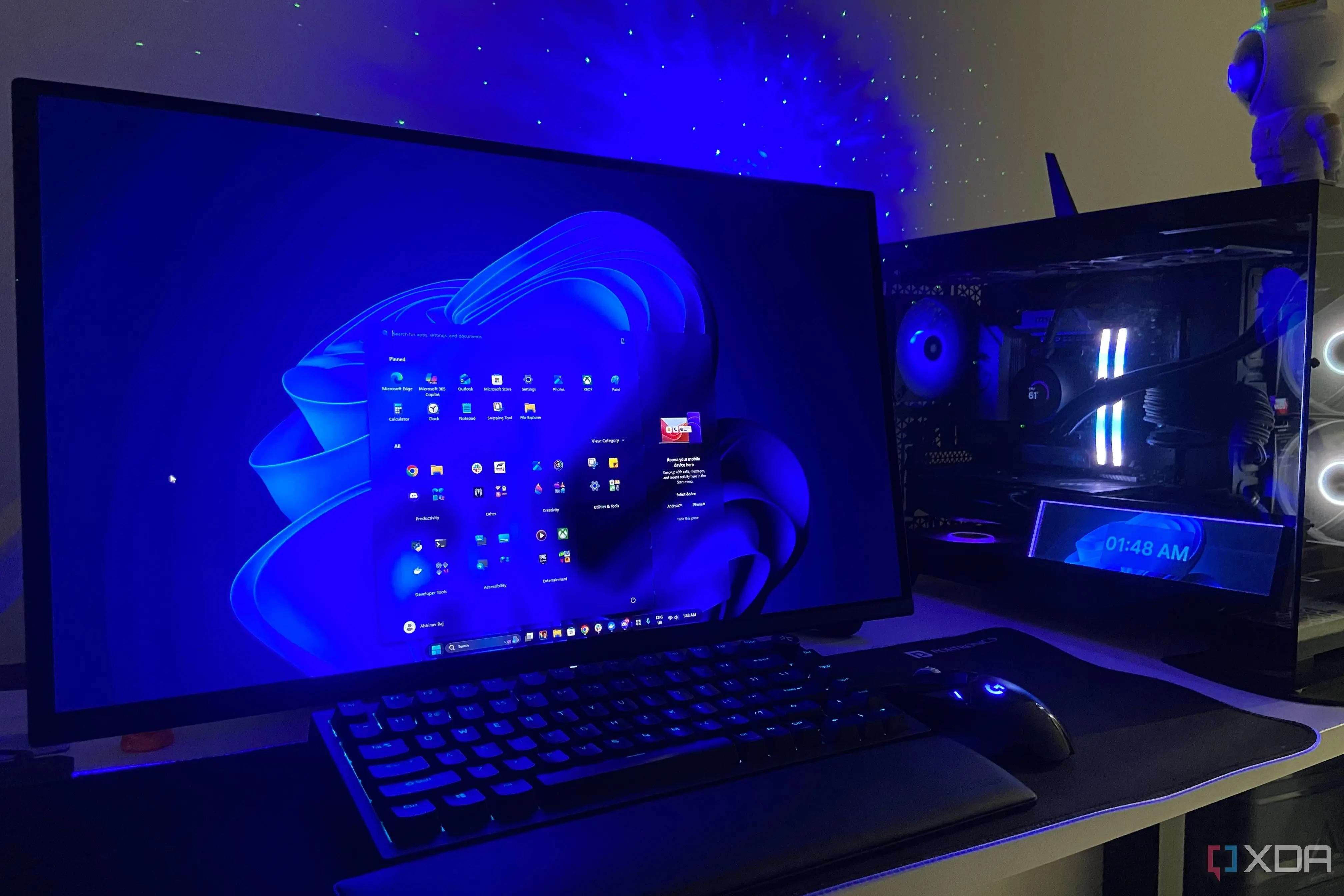
Microsoft’s search function in Windows has improved in speed and interface but remains unreliable for locating personal files, leaving many users frustrated. Despite updates meant to enhance usability, the core issue of incomplete indexing persists, affecting everyday tasks like finding documents, photos, or downloads. Users report that even after typing exact filenames, results often omit relevant items, forcing reliance on manual navigation or third-party tools.
Breaking news
 Canonical’s Web Presence Hit by Second DDoS Assault This Year
 Loops AI Secures $3.5 Million to Power a New AI Operating System for E‑Commerce
 Winverse AI Secures Tens of Millions in Seed Funding from DeepSeek and Long‑Z
 Google Adds Pixel 9 Series to Certified Refurbished Store
The problem stems from how Windows Search indexes content, prioritizing system files and app data over user-generated content stored in non-standard locations. While Microsoft has refined the search algorithm and added AI-powered suggestions, it has not adequately addressed gaps in file system coverage, particularly for files outside indexed libraries like Documents or Pictures. Custom folders, external drives, and secondary storage devices are frequently excluded unless manually added, a process most users find obscure or tedious. As a result, search returns partial results, creating a false sense of completeness.
Many users assume that saving a file in a common folder ensures it will be searchable, but Windows only indexes specific locations by default. Files saved to the desktop, downloads folder, or secondary drives often fall outside these parameters unless users manually adjust indexing options—a setting buried in Control Panel. Microsoft’s recent updates focused on improving search relevance and natural language understanding, but did not expand the default indexing scope. This mismatch between user expectations and system behavior leads to repeated failures, especially for those managing large or diverse file collections without technical expertise.
How Can Users Make Search More Reliable Without Expert Knowledge?
One workaround involves manually adding folders to the indexing list via Indexing Options, but this requires navigating legacy settings unfamiliar to many. Alternatively, enabling „Enhanced” mode in Windows Settings indexes the entire drive, though it can slow performance and increase power usage. Microsoft has not made this the default, citing resource concerns. Until the company rethinks its indexing strategy to prioritize user file discoverability by default, the search experience will remain inconsistent, pushing users toward alternatives like Everything or Copilot-assisted file retrieval, which bypass native limitations but add complexity to the workflow. Frequently Asked Questions Why does Windows Search fail to find files I know exist? It likely isn’t indexing the folder where the file is stored. By default, only certain locations like Documents and Pictures are indexed; other folders must be added manually.
Is there a way to make Windows Search check all my files without slowing down my PC? Enhanced search mode indexes the entire drive but may impact performance on older systems. Users can schedule indexing during idle times to reduce disruption.
Will future Windows updates fix this issue automatically? Microsoft has not announced plans to change default indexing behavior, though user feedback may influence future design choices focused on usability over system resource conservation.