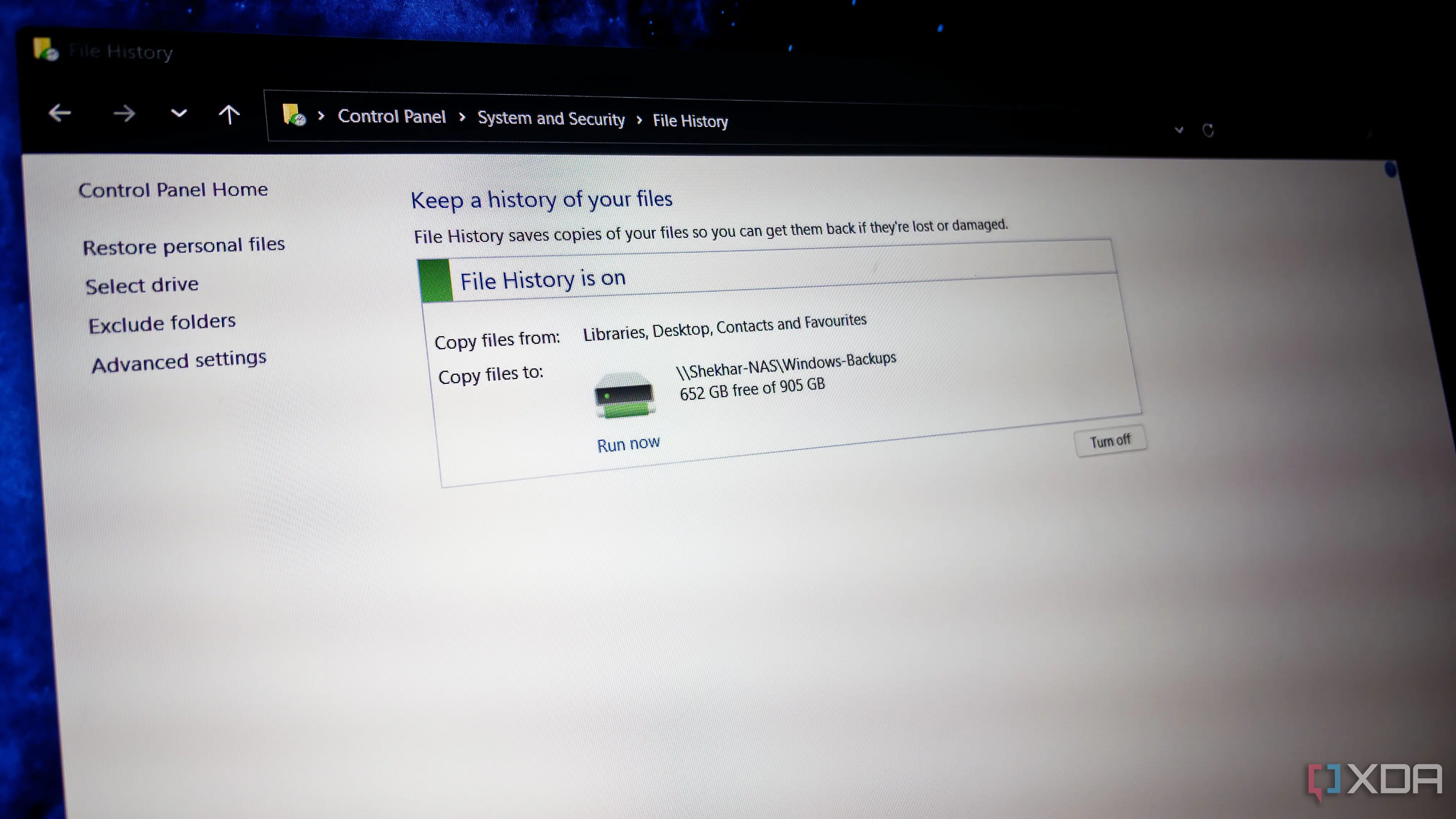
By configuring Windows Backup to target this local drive instead of the cloud
My homelab provided the solution I needed all along. After years of juggling Windows backups within OneDrive’s tight storage constraints, I shifted my approach by leveraging a personal server setup at home. This change eliminated the constant anxiety of hitting cloud limits and gave me full control over my data retention and accessibility. The shift was simple in concept but transformative in practice, turning a recurring frustration into a seamless routine. The core issue stemmed from OneDrive’s fixed storage tiers, which often proved insufficient for regular system image backups and file versioning. As someone who relies on Windows for both work and personal projects, I found myself frequently deleting older backups to make space—a risky habit that undermined the purpose of having backups in the first place. My homelab, built around a modest NAS device running open-source backup software, offered a local alternative with scalable storage.
Breaking news
 Town AI Secures $108 Million Series B, Valued at $1 Billion After $55 M Pre‑Series
 Apple Prepares for Major Product Launch Event on October 28
 Apple Releases Release Candidates for watchOS, tvOS and visionOS 27.2
 Apple Limits iPhone Duo and iPhone 18 Pro Max to Reservation-Only Sales in Japan and South Korea
By configuring Windows Backup to target this local drive instead of the cloud, I regained the ability to maintain comprehensive, versioned backups without artificial limits. Why Local Control Beats Cloud Convenience for Backups The homelab solution isn’t just about avoiding storage fees—it’s about reliability and speed. Restoring from a local drive is significantly faster than downloading large backup files from the cloud, especially during urgent recovery scenarios. Additionally, keeping backups on-premises reduces exposure to potential cloud service outages or account-related issues. I use a combination of scheduled tasks and free tools like Macrium Reflect Free to automate the process, ensuring consistency without manual intervention. The initial setup took under an hour, and the ongoing maintenance is minimal, mostly involving occasional checks on drive health. How Much Storage Do You Really Need for Windows Backups? This is a common point of confusion.
A full Windows system image typically ranges from 50 to 150 GB depending on
A full Windows system image typically ranges from 50 to 150 GB depending on installed applications and user data. For most users, retaining two to three recent versions provides a solid safety net, meaning 200–450 GB of dedicated backup space is often sufficient. My homelab allocates 2 TB to backups, allowing for months of version history and room for growth. Unlike cloud services that penalize you for exceeding limits, local storage only requires a one-time hardware investment, which pays off quickly when compared to recurring subscription fees for higher OneDrive tiers. Frequently Asked Questions Is it safe to keep backups only locally and not in the cloud? While local backups offer speed and control, they’re vulnerable to physical threats like theft, fire, or hardware failure. For critical data, a 3-2-1 strategy—three copies, two media types, one offsite—is ideal.
Consider pairing your homelab with occasional cloud snapshots or an offsite drive rotation for added protection. Can I still access my backups remotely if they’re on my homelab? Yes, with proper network configuration. Many NAS devices support secure remote access via VPN or encrypted web interfaces, allowing you to retrieve files when away from home. However, this requires basic networking knowledge and should be set up carefully to avoid exposing your system to risks. Does Windows Backup work reliably with NAS drives? Absolutely, as long as the NAS appears as a network location and uses a compatible file system like NTFS or ReFS. Ensure the backup user has write permissions and that the drive remains connected during scheduled backup windows to avoid failures.