Unseen Bottlenecks in Your System
Many PC users blame Windows for slow performance, especially in games. However, a hidden culprit might be limiting your frame rates. Your computer's basic input/output system (BIOS) or Unified Extensible Firmware Interface (UEFI) settings could be the real issue. These firmware defaults can silently throttle your system.
Breaking news
 China’s Tech Titans Spend $35 B on Nvidia RTX Pro 5500 GPUs
 Qualcomm to Execute Global Layoffs Following Annual Performance Reviews
 Salesforce to Buy Braze for $5.7 Billion
 Microsoft expands sovereign cloud with EU access controls and offline AI
This often goes unnoticed by average users. They might spend hours troubleshooting software problems. The actual problem lies deeper within the system's core configuration.
How Can BIOS Settings Affect Your PC?
Modern motherboards come with factory default settings. These settings are not always optimized for peak performance. They are often configured for stability or power efficiency. This can lead to your CPU or GPU not reaching its full potential. Gamers, in particular, will notice reduced frame rates (FPS).
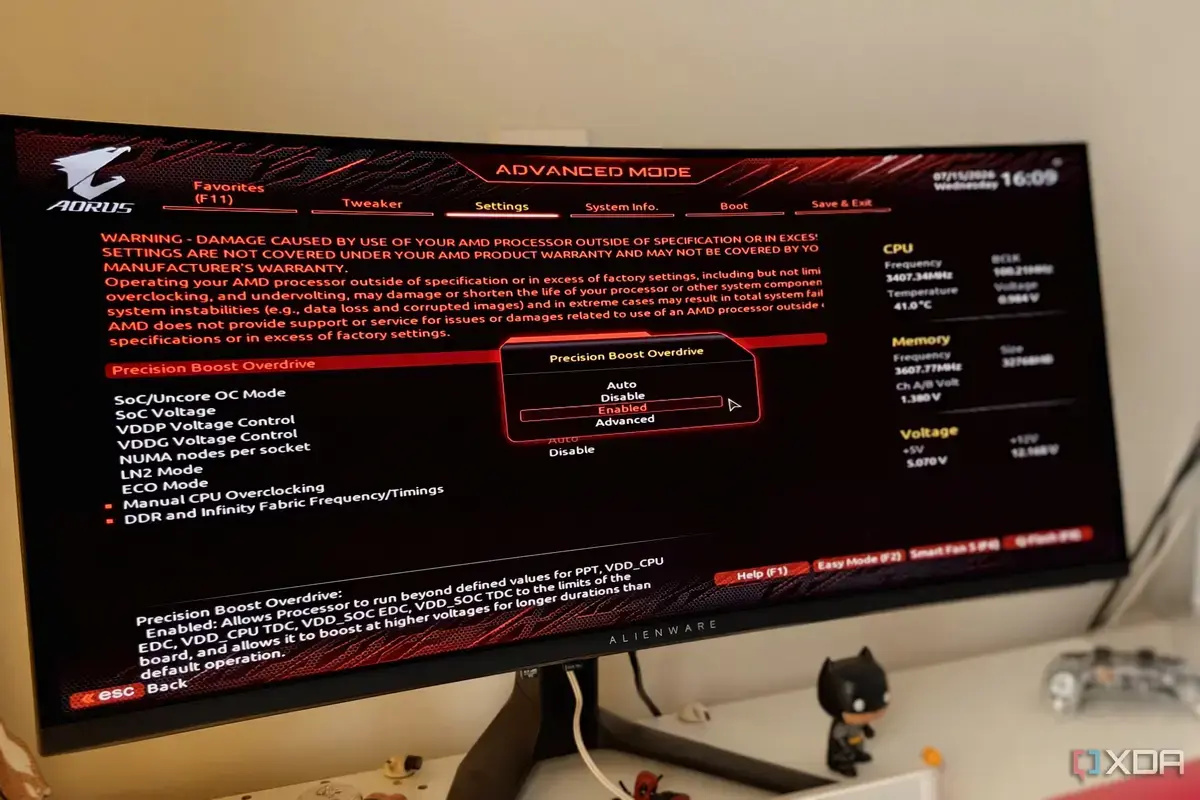
Checking these settings can reveal several performance-limiting options. Features like Enhanced Multi-Core Performancemight be disabled. Precision Boost Overdrivefor AMD processors or Turbo Boostfor Intel CPUs might also be off. These settings directly impact how fast your processor can run.
# What is BIOS/UEFI?
The BIOS/UEFI controls fundamental aspects of your computer. It manages hardware initialization and system configuration. If these settings are not optimal, they can create bottlenecks. This prevents components from working at their intended speeds. For instance, memory timings might be set conservatively. This limits the data transfer rate to and from your RAM.
Even power management settings within the firmware can be a factor. Aggressive power-saving modes can reduce clock speeds. This happens even when your computer is under heavy load. Users should explore these menus carefully. Adjusting them can unlock significant performance gains.
# How do I access my BIOS/UEFI settings?
Before reinstalling Windows or upgrading hardware, check your BIOS/UEFI. A few tweaks there could dramatically improve your PC's speed. This is especially true for gaming performance. It’s a simple step that many overlook.
BIOS (Basic Input/Output System) and UEFI (Unified Extensible Firmware Interface) are firmware interfaces. They provide low-level control over your computer's hardware. They are the first software to run when you turn on your PC.
# What settings should I look for to improve performance?
You typically access BIOS/UEFI by pressing a specific key during startup. Common keys include Delete, F2, F10, or F12. The exact key varies by motherboard manufacturer.
Look for options related to CPU core performance, memory profiles (like XMP for Intel or DOCP for AMD), and power management. Ensure features like Turbo Boostor Precision Boost Overdriveare enabled.