Uncovering Hidden Bottlenecks
In the world of IT, identifying network problems can often feel like searching for a needle in a haystack. A simple command in Windows can help users pinpoint where their network is experiencing delays or failures. This command, often overlooked, can provide crucial insights into network performance.
Breaking news
 Canonical’s Web Presence Hit by Second DDoS Assault This Year
 Loops AI Secures $3.5 Million to Power a New AI Operating System for E‑Commerce
 Winverse AI Secures Tens of Millions in Seed Funding from DeepSeek and Long‑Z
 Google Adds Pixel 9 Series to Certified Refurbished Store
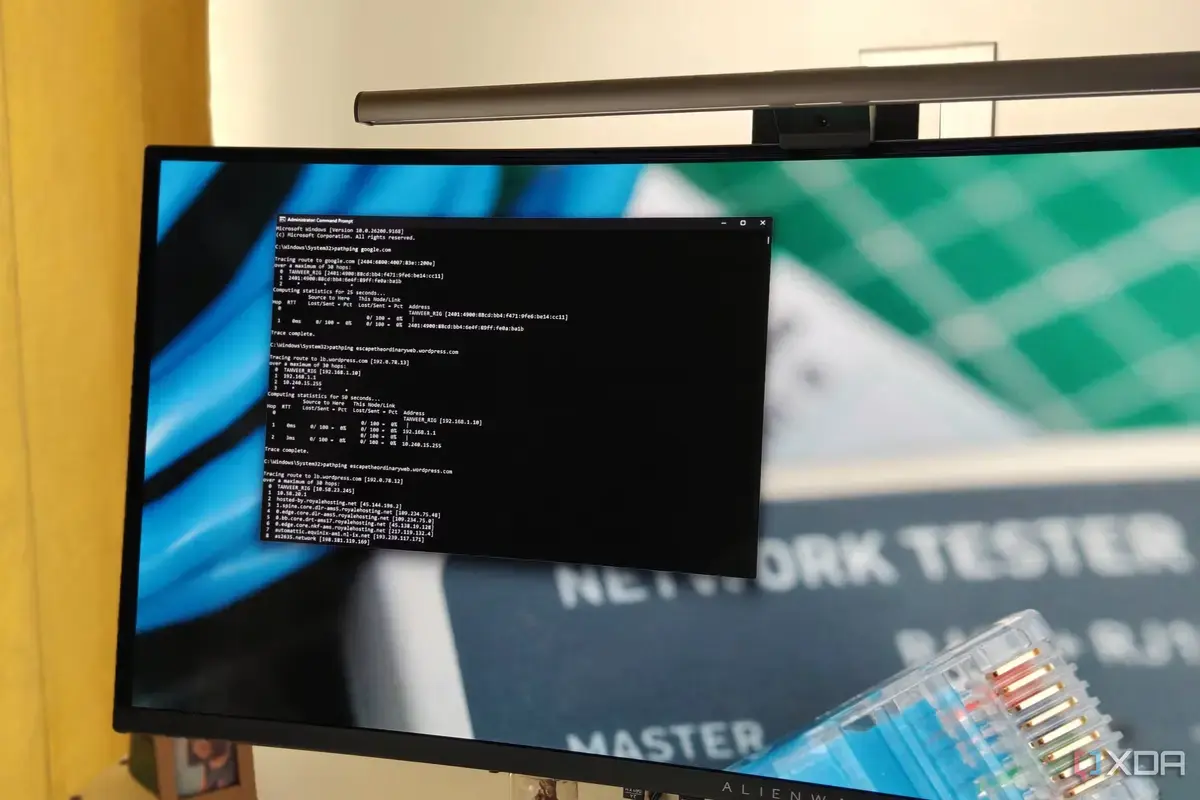
The Command Prompt line in question is pathping. This tool combines the functionalities of the traditional ping command with additional features that trace the route data takes to reach a destination. By using pathping, users can identify specific nodes along the route that may be causing slowdowns or interruptions. This is especially useful for businesses that rely heavily on network connectivity for daily operations.
Pathping works by sending packets to the target address and measuring the time it takes for each hop along the way. This information can reveal which parts of the network are functioning well and which are not. For example, if one node consistently shows high latency, it may indicate a problem with that particular router or switch.
How Can You Use Pathping to Diagnose Problems?
Network administrators can use this information to troubleshoot issues more effectively. Instead of guessing where the problem lies, they can focus their efforts on specific areas that need attention. This can save time and resources, allowing for quicker resolutions to network issues.
To run the pathping command, open the Command Prompt and type pathpingfollowed by the destination address. The command will take a few moments to execute, as it collects data from each hop. Once complete, the results will display the latency and packet loss for each node along the route.
Understanding these results can help users make informed decisions about their network infrastructure. If a particular node shows consistent packet loss, it may need to be replaced or reconfigured. This proactive approach can prevent larger network issues from developing over time.
The implications of using pathping extend beyond just troubleshooting. By regularly monitoring network performance with this command, businesses can maintain optimal connectivity and improve overall productivity. In an increasingly digital world, ensuring a reliable network is essential for success.
Frequently Asked Questions
What is pathping? Pathping is a command-line tool in Windows that combines the features of ping and tracert. It helps identify network bottlenecks by measuring latency and packet loss at each hop to a destination.
How often should I use pathping? Regular use of pathping can help maintain network health. It's advisable to run this command whenever you experience connectivity issues or as part of routine network monitoring.
Can pathping be used on other operating systems? Pathping is specific to Windows. However, similar tools are available on other systems, such as traceroute on Unix-based systems, which provide comparable functionality.