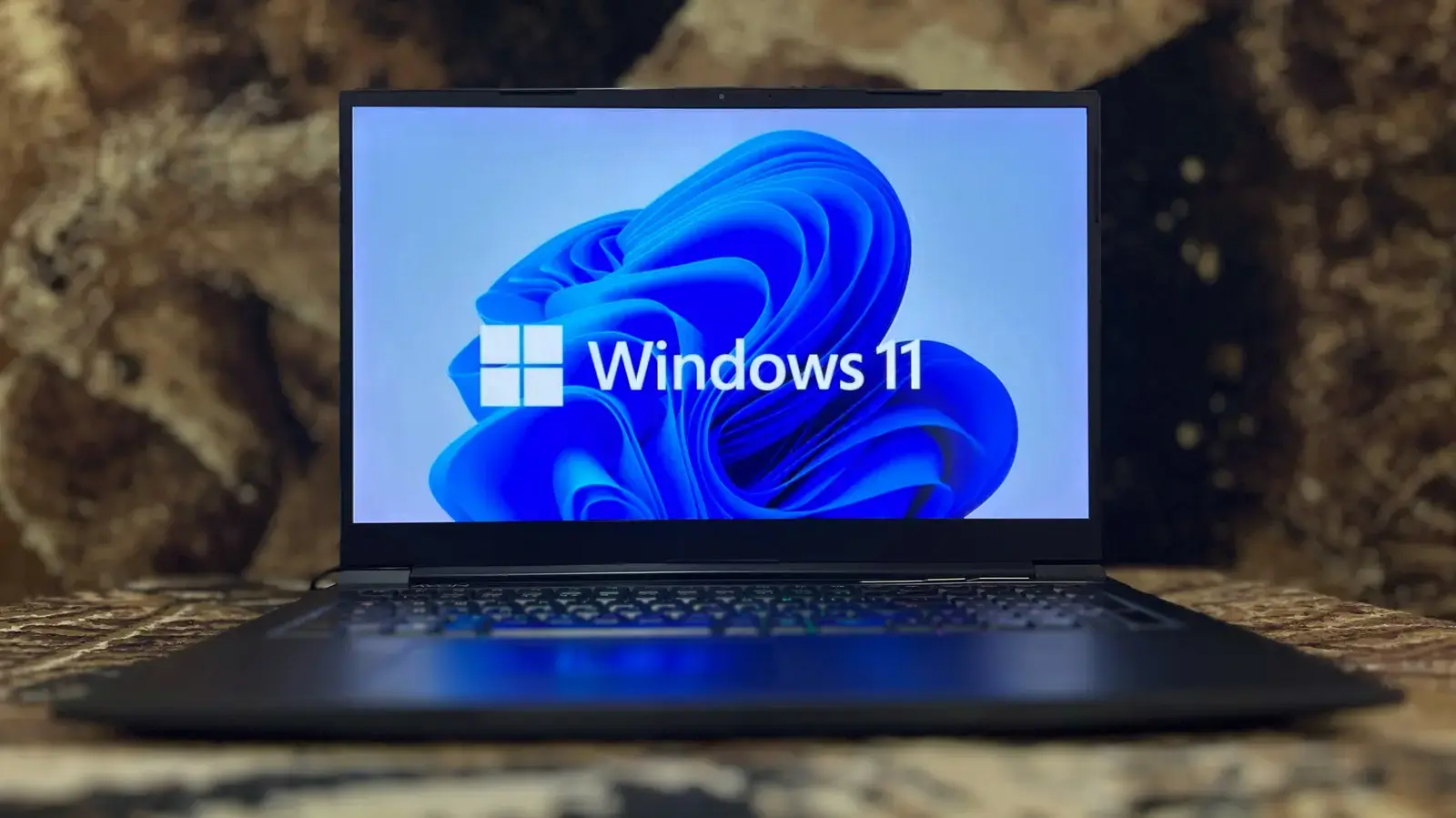
How to Get a Bootable USB Stick Using the Official Media Creation Tool for
If you want to install Windows 11 on another PC or restore an old device to factory settings, a bootable USB stick is a practical and efficient solution. To do this without hassle, Microsoft provides a free and easy-to-use tool: Media Creation Tool. It helps you download the operating system installation image and transfer it to external storage, ready for use anytime.
Breaking news
 Trump Orders Federal Agencies to Adopt „Super Intelligence” Terminology
 The Silicon Valley Accountability Gap
 Running a Local AI Model on a Phone Handles Most Chat Prompts
 Google Photos Could Soon Offer a Fresh Start with Ask Photos Feature
Before starting the process, it is essential to prepare a few key items. You need a computer with internet access, a USB stick with at least 8 gigabytes of capacity, and preferably one without important data, since all content will be erased during formatting. Also, ensure you have a valid Windows 11 license, even though the tool does not ask for the product key during download—it will be requested later during installation.
The process begins by visiting Microsoft's official website, where you find the section dedicated to downloading Windows 11. From there, select the option to download Media Creation Tool. After the executable file is saved to your computer, run it with administrator privileges. The tool will present two main choices: upgrade your current PC or create installation media for another device. Choose the second option, then confirm your selection.
The next step involves choosing the language, edition, and architecture of Windows 11 you want to install. Usually, the tool automatically detects suitable settings based on your computer, but you can modify them manually if you need a specific version, such as Windows 11 Pro instead of Home, or 64-bit architecture instead of 32-bit. After making these settings, click „Next”.
The tool will now start downloading the necessary installation files from Microsoft's servers. This stage can take anywhere from several tens of minutes to over an hour, depending on your internet connection speed. Once the download is complete, Media Creation Tool will automatically format the USB stick and copy all required boot and installation files onto it. At the end, you will receive a confirmation message informing you that the device is ready to use.
Although Media Creation Tool is the recommended
It is important to note that during the process, all data on the USB stick will be permanently lost. Therefore, always back up important information before launching the tool. Also, avoid closing the application window or shutting down the computer during download or copying, as this can cause errors or create a non-functional bootable drive.
Although Media Creation Tool is the recommended and safest method, there are third-party alternatives like Rufus or Ventoy, which offer more control over the bootable media creation process. These tools can be useful in special situations, for example, when you want to put multiple operating systems on the same stick or when you need advanced partitioning options. However, for most users, Microsoft's official tool remains the simplest and most reliable choice.
After creating the bootable USB stick, you can use it to install Windows 11 on any compatible computer. To boot from it, you must access the boot menu (usually by pressing a key such as F12, Esc, or Del at startup) and select the USB device as the boot drive. From there, follow the on-screen instructions to complete the installation—from accepting the license terms and choosing the installation partition to configuring the user account and privacy settings.
Having a Windows 11 bootable USB stick at hand is extremely useful not only for new installations but also for troubleshooting. If the operating system fails to start properly, this drive allows you to access recovery options, repair boot errors, or completely reinstall the system without losing data (if you choose the option to keep personal files). It is, therefore, an essential tool for both home users and IT professionals.
In conclusion, creating a bootable USB stick with Media Creation Tool is an accessible, well-structured, and safe process that does not require advanced technical knowledge. By following the described steps and properly preparing the necessary resources, anyone can have a reliable means to install, repair, or update Windows 11 in just a few simple steps. Without needing paid software or special expertise, this official tool provides a complete and trustworthy solution for any need related to deploying Microsoft's operating system.