
Balancing Automation and User Control
Canva has rolled out a new setting that lets both free and premium subscribers disable generative AI features. This update addresses widespread user frustration regarding the platform’s aggressive integration of artificial intelligence. The change applies to tools like Magic Expand, which automatically extends image backgrounds using AI. Users can now access this control directly within their account settings. The move signals a shift toward giving creators more autonomy over how they use the software. It reflects a broader industry trend where design platforms are responding to community feedback about automation.
Breaking news
 Samsung Shifts Galaxy Watch Strategy to Two-Year Release Cycle
 Tesla rolls out FSD v15 with major safety upgrade
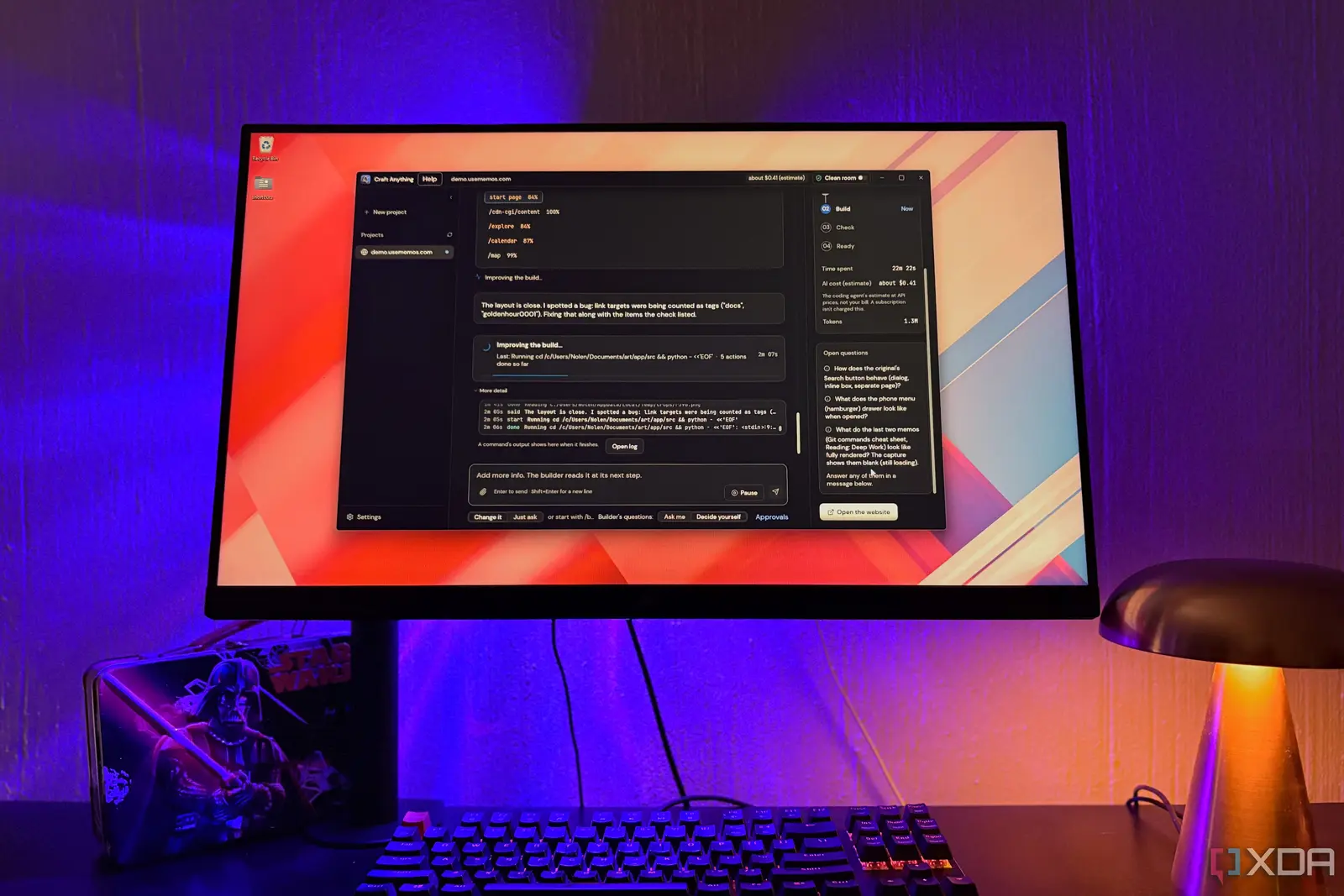 Open-Source Tools Challenge AI-Powered Development Platforms
 AI Infrastructure Bottlenecks: Why Release Pipelines Hold Back Fast Clusters
The addition of this toggle comes after months of complaints from the Canva community. Many designers argued that forced AI features disrupted their workflow and altered images without explicit permission. By providing a clear on-and-off switch, Canva aims to restore trust among its user base. The company recognizes that while AI offers speed, some professionals prefer manual control for precision work. This feature ensures that generative tools remain optional rather than mandatory defaults. It allows users to choose between automated assistance and traditional editing methods based on their specific project needs.
Why Did Canva Make This Change?
User feedback played a central role in this decision. Community forums and social media channels were filled with requests for a way to stop AI from interfering with standard design tasks. Canva responded by prioritizing user preference over default automation. The toggle specifically targets features like Magic Expand, which previously ran automatically during certain editing processes. Now, users can keep these tools active if they want the convenience, or switch them off to maintain full manual oversight. This approach reduces the cognitive load on users who do not wish to manage AI outputs constantly. It creates a cleaner interface for those who view AI as a distraction rather than an aid.
Who can access the new AI toggle? Both free and paid Canva users can access this setting. The feature is available to all accounts regardless of subscription tier. Users can find it in their general application preferences.
Frequently Asked Questions
Which AI features does the toggle affect? The switch primarily controls generative tools such as Magic Expand. It allows users to disable automatic background extension and similar AI-driven enhancements. Other core design functions remain unaffected by this setting.
Does turning off AI delete existing designs? No, disabling the toggle does not remove any previous work. It only stops future automatic AI processing. Users can re-enable the feature at any time through the same settings menu.