The first full backup may take several hours, but subsequent updates are quick
Apple's Time Machine feature offers a reliable way to back up your MacBook without relying on paid cloud services. Introduced years ago, it automatically saves copies of your files to an external drive, ensuring data safety even if your device fails. Many users overlook this free tool while searching for expensive online storage solutions. Time Machine works by creating hourly, daily, and weekly backups when an external drive is connected. It intelligently manages storage by deleting older backups when space runs low, keeping only the most recent versions. This local approach means your data stays private and accessible without internet dependency or subscription fees. Setting Up Time Machine for Automatic Protection To begin, connect an external hard drive or SSD to your MacBook via USB or Thunderbolt. Open System Settings, select General, then Time Machine, and click Add Backup Disk. Choose your drive and enable automatic backups.
Breaking news
 Trump Orders Federal Agencies to Adopt „Super Intelligence” Terminology
 The Silicon Valley Accountability Gap
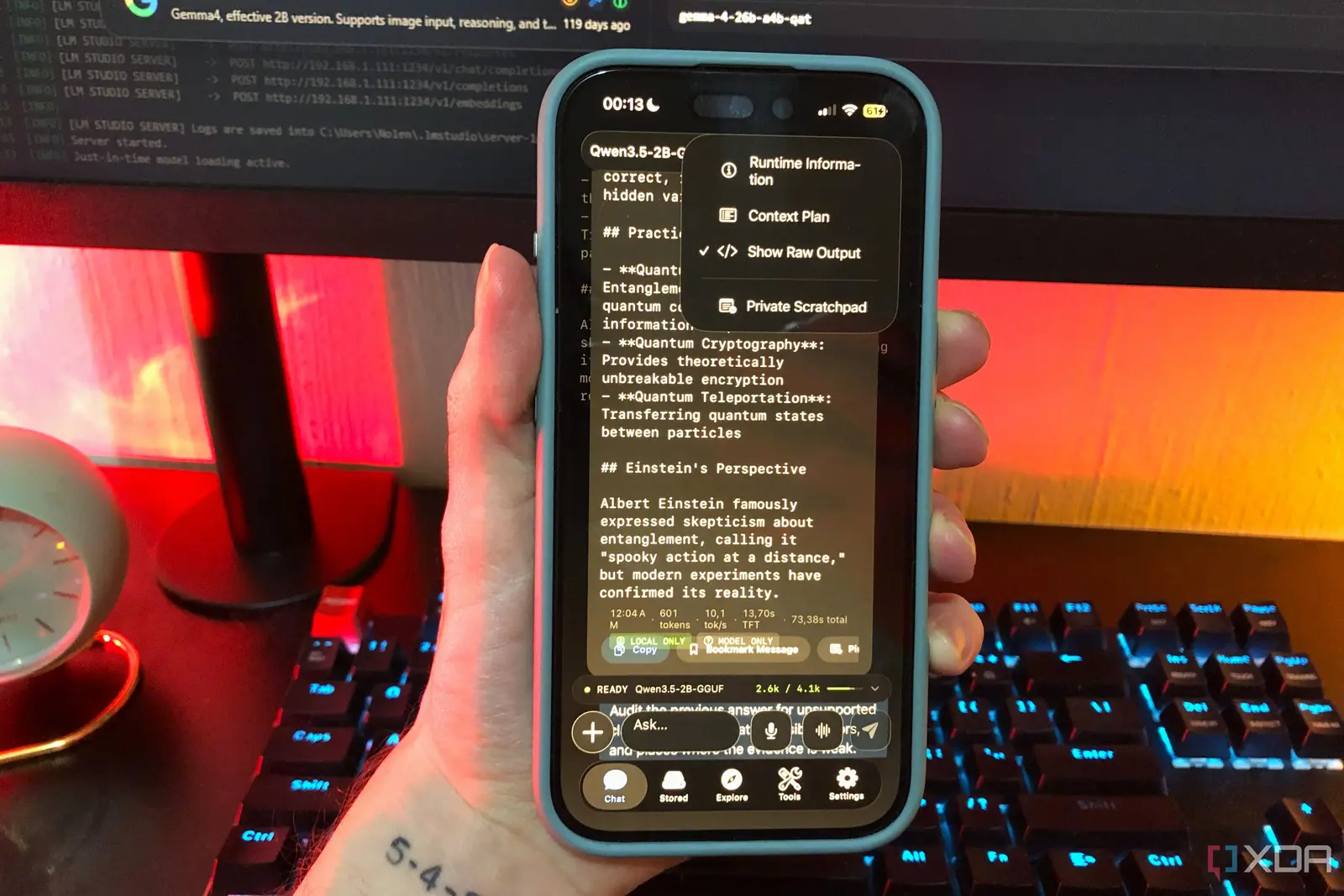 Running a Local AI Model on a Phone Handles Most Chat Prompts
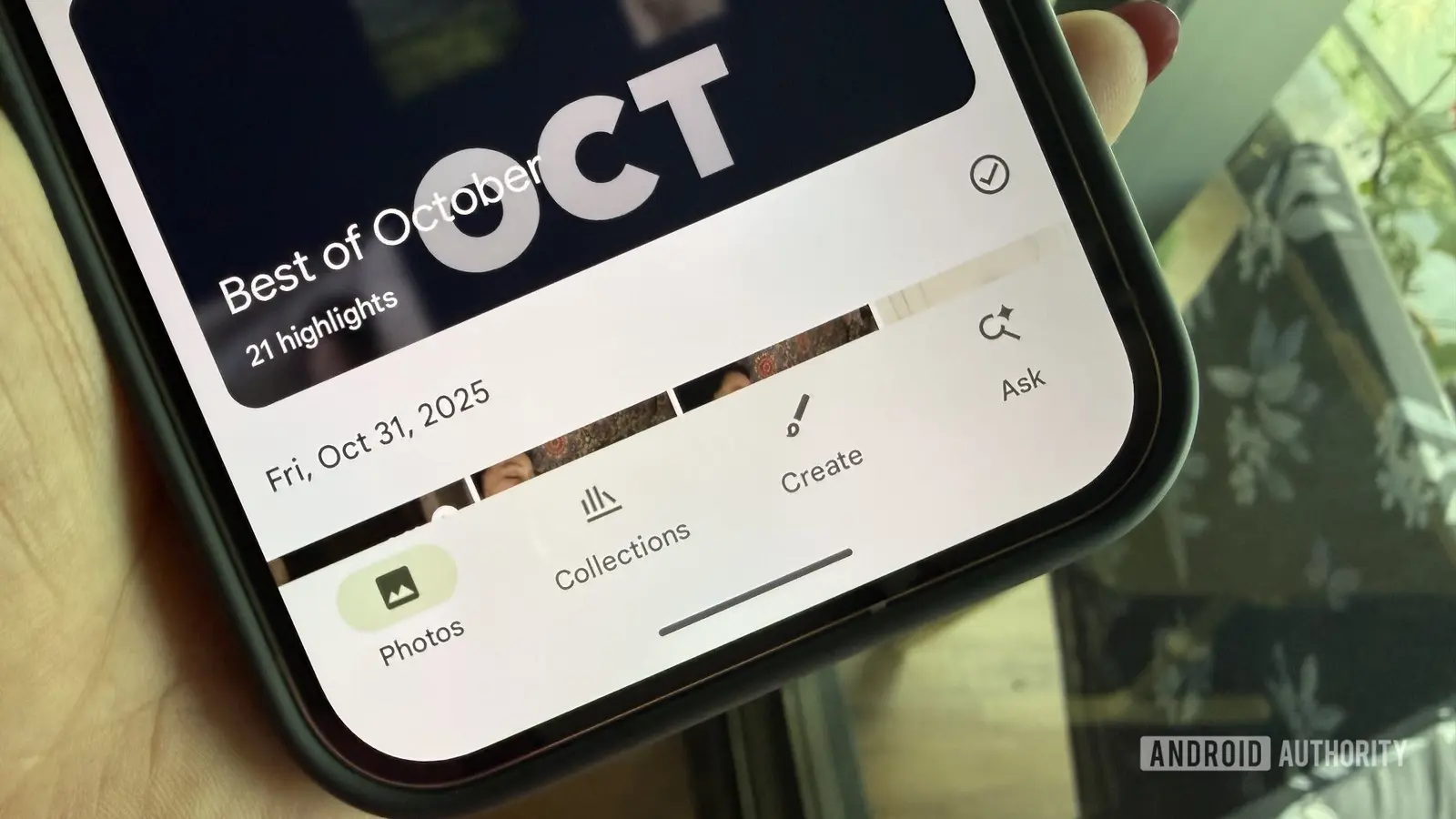 Google Photos Could Soon Offer a Fresh Start with Ask Photos Feature
The first full backup may take several hours, but subsequent updates are quick and silent. Once configured, Time Machine runs in the background, saving versions of documents, photos, and system files. You can exclude specific folders to save space, such as large downloads or temporary caches. Restoring files is simple—enter Time Machine through the menu bar and navigate through timelines to recover lost items. Can You Trust a Local Backup Over Cloud Services? Yes, for users who prioritize privacy and control, Time Machine provides sufficient protection against hardware failure, accidental deletion, or malware. Unlike cloud storage, it avoids ongoing costs and third-party access risks. However, it does not protect against theft, fire, or flood affecting both your MacBook and backup drive simultaneously. Experts recommend pairing Time Machine with occasional offsite backups for complete safety.
Still, for everyday users seeking a no-cost, no-subscription method
Still, for everyday users seeking a no-cost, no-subscription method, it remains a robust alternative to services like i Cloud or Google Drive. Its seamless integration with macOS ensures minimal setup and maximum reliability. Frequently Asked Questions How often does Time Machine back up my data? Time Machine performs hourly backups for the past 24 hours, daily backups for the past month, and weekly backups until the drive is full, then deletes the oldest to make space.
Do I need to keep my external drive connected all the time? No, but backups only occur when the drive is attached. For best results, connect it regularly—such as during work hours—to ensure consistent protection.
Can I use Time Machine to migrate to a new MacBook? Yes, during setup of a new Mac, you can restore applications, files, and settings directly from a Time Machine backup, making the transition smooth and complete.