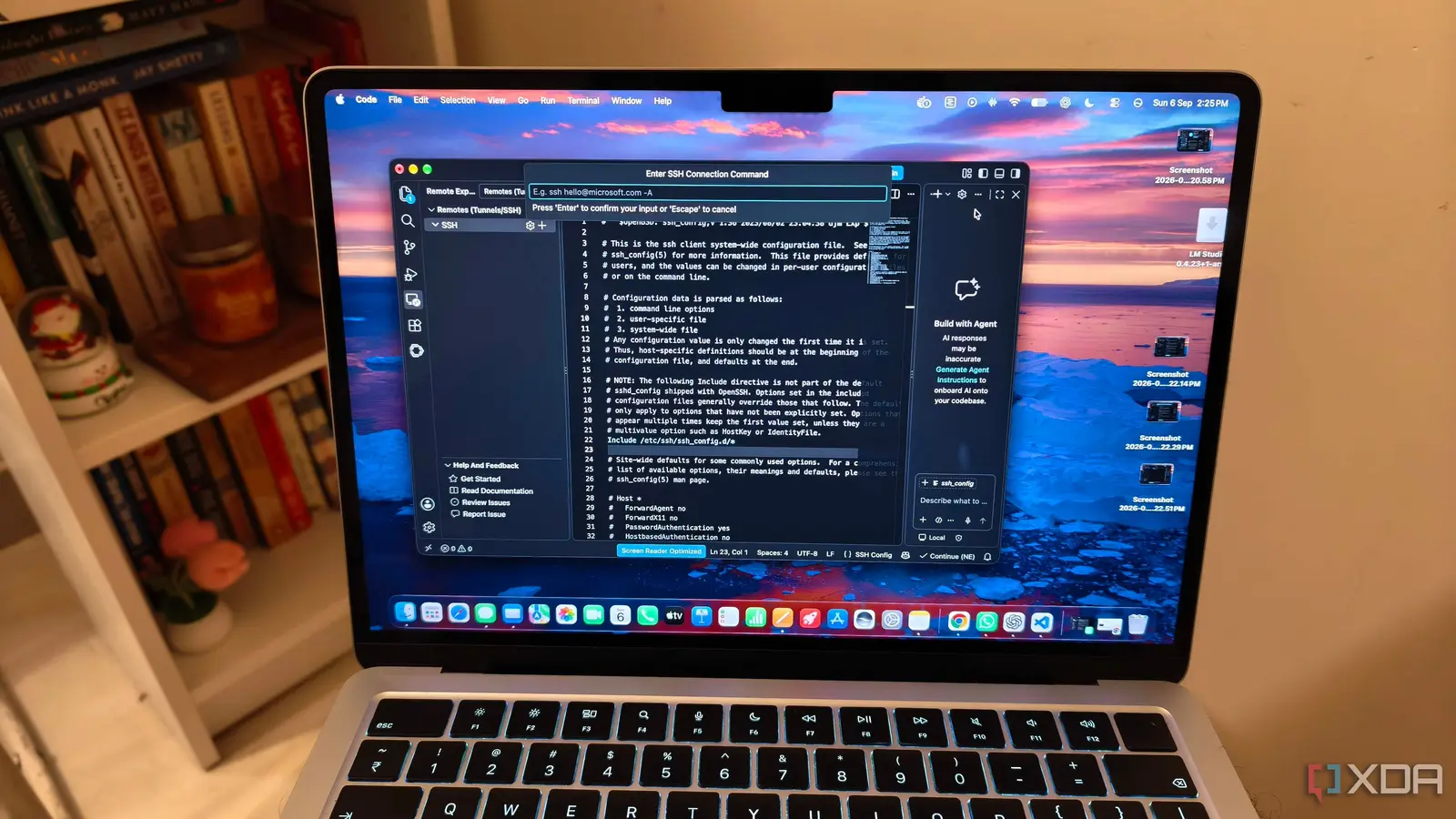
Uncovering the Tunneling Tool
The Visual Studio Code editor now offers a tunneling option tucked inside the account menu. I discovered it last week while working on a budget laptop. The feature lets me connect to a powerful desktop over the internet, turning my thin machine into a full‑featured development environment.
Breaking news
 Canonical’s Web Presence Hit by Second DDoS Assault This Year
 Loops AI Secures $3.5 Million to Power a New AI Operating System for E‑Commerce
 Winverse AI Secures Tens of Millions in Seed Funding from DeepSeek and Long‑Z
 Google Adds Pixel 9 Series to Certified Refurbished Store
The tunnel works by creating a secure, encrypted tunnel between the client and the host. It forwards ports and file streams, so the remote desktop runs the code while I see everything in VS Code. The trick is that the option is not in the usual settings; it appears only when you click the account icon and select „Tunnel.” The feature is available in the latest stable release.
When I first clicked the account icon, the tunnel option surprised me. I followed the on‑screen prompt and entered the host’s IP address. VS Code then asked for my SSH key or password. After a few seconds, the remote session appeared. I could open files, run terminals, and debug just like a local editor. The interface stayed the same, so I didn’t need to learn new commands.
The tunnel uses standard SSH protocol, so it works with any machine that supports SSH. I tested it on a Windows 10 desktop and a Linux server. The only requirement is a stable internet connection. The feature also supports port forwarding, so I could expose a local web server running on the host to my laptop’s browser.
Can This Feature Replace a Local IDE on a Budget Laptop?
I noted that the tunnel remains active until I close the VS Code window or disconnect manually. The host’s resources are used entirely, so my laptop’s CPU and battery life stay low. It’s a convenient way to leverage a desktop’s power without leaving the VS Code environment.
The answer is yes, for many developers. A budget laptop often struggles with large projects or heavy IDEs. By tunneling to a desktop, the laptop becomes a thin client. You still benefit from VS Code’s extensions and UI. The only downside is latency; if the network is slow, code execution can feel sluggish.
I tested the feature with a 15‑inch laptop that has a 2‑GHz dual‑core CPU. Running a Node.js project with thousands of dependencies, the desktop handled compilation in seconds. The laptop’s screen showed the output instantly. In contrast, running the same project locally on the laptop took minutes and used most of the battery.
The feature also supports multiple simultaneous tunnels. I can open two terminals on the host, each connected to a different project. This flexibility makes it ideal for developers who juggle several codebases. The only limitation is that the host must be reachable from the internet, which may require port forwarding or a VPN.
Frequently Asked Questions
Future updates may add a GUI for managing tunnels, making the tool even more accessible. Microsoft has hinted at expanding remote capabilities, so we may see a dedicated „Remote Tunnel” panel in upcoming releases.
What is the tunnel feature in VS Code? It is a hidden option that creates a secure SSH tunnel between your client and a remote host, allowing you to run code on the host while using VS Code locally.
How do I enable it? Click the account icon in the bottom left corner, choose „Tunnel,” then enter the host’s IP and authentication details. The connection will open automatically.
Does it work with all VS Code versions? The feature is available in the current stable release and later. Earlier versions do not include the tunnel option.